TL;DR Summary:
Hidden Follow Button: Google quietly added a Search profile badge that lets visitors follow a site directly from its pages, but the feature was left out of the main announcement.Simple Embed Setup: Once a Search profile is claimed, site owners can paste Google’s embeddable code to display a clickable badge with the Google Search label and Super G icon.Strict Design Rules: Google requires specific tap-target sizes and forbids stretching, recoloring, or rotating the badge, with a monochrome version needed for one-color site designs.Use It Correctly: If a site also uses Preferred Sources, Google says to use the labeled Search profile button instead of the plain icon so the two features stay visually distinct.How do you add a Google Search profile badge to your website? Google quietly rolled out this feature on September 16, 2026, letting site owners embed a clickable badge so visitors can follow them directly from their own web pages. It matters right now because Google left this detail out of its main Search profiles announcement, and Barry Schwartz spotted it separately.
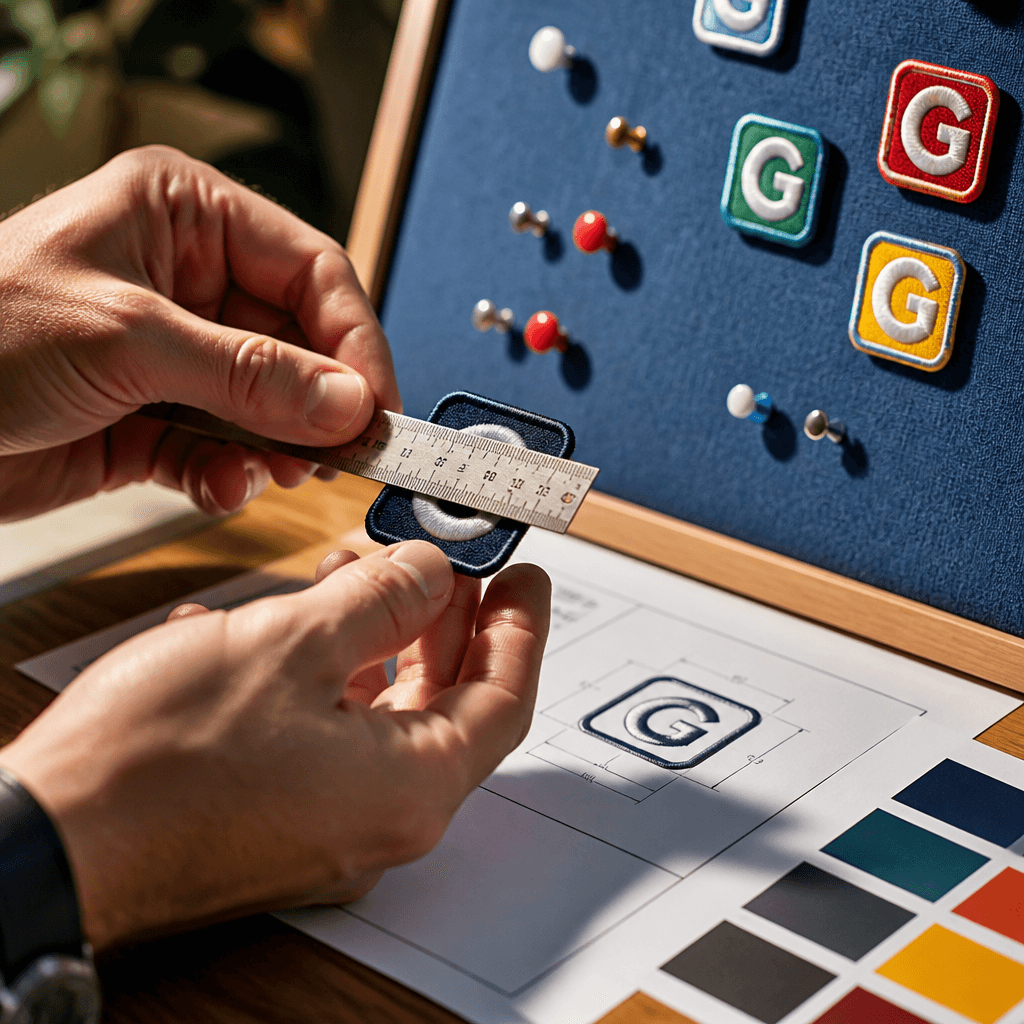
The Google Search profile badge works as a follow button for your site. Google’s help documentation explains that once you claim a Search profile, you can add this badge to help your audience find your content across the web. The badge shows a “Google Search” label next to the Super G icon, and Google provides embeddable code so you can place it on any page you control.
Sizing Rules for the Google Search Profile Badge
Google set specific size requirements for the clickable area of the badge. On Android, the touch target must measure at least 48 by 48 dp (density-independent pixels, a unit that adjusts for different screen resolutions). On iOS and web, the minimum is 44 by 44 px. These numbers exist so visitors on phones and tablets can tap the badge without missing it or hitting something else by mistake.
Logo Rules You Cannot Change
Google’s brand guidelines protect the look of the Super G icon and the Search profile button. You cannot stretch, distort, rotate, or recolor these official assets. If you run a site with a monochrome design, meaning one color throughout, you need to use the monochrome version of the G icon. Mixing a colorful badge into a monochrome layout breaks Google’s guidelines and creates a visual mismatch on your page.
Using the Badge Alongside Preferred Sources
Some site owners also use Google’s Preferred Sources badge, a separate feature that lets readers mark a site as a preferred source in Search results. Google says if you use both badges together, use the labeled Search profile button instead of the plain Super G icon. This keeps the two badges visually distinct, so visitors do not confuse a Search profile follow action with a Preferred Sources selection.
Adding the Code to Your Site
Google supplies embeddable code for the Search profile badge, shown alongside the button image in its documentation. You paste this code into your site to display the badge. No date has been given for when this code option might change or expand, so treat the current version as the working standard until Google says otherwise. For WordPress site owners juggling multiple embed codes across pages, a tool like WP Links can make it easier to keep track of badge attributes and confirm the links stay intact as you update templates or themes.
Why This Announcement Came Separately
Google did not mention the badge in its original rollout of Search profiles features. Schwartz identified the badge and its guidelines on his own, publishing the detail on September 16, 2026. This means some site owners who read only the original announcement may not know the badge option exists yet.
If you run a website and want visitors to follow your content, check whether you have claimed a Search profile first. Once claimed, add the badge using Google’s code and follow the sizing and logo rules exactly. Watch for further guidance from Google, since the badge rollout came as a late addition and more details may follow. If you’re adding embeddable badges like Google’s Search profile button to your site, a tool like WP Links can help you verify that badge links and attributes stay correctly configured across your WordPress pages.